
FLUX 3 Image Editor – Change One Thing, Keep the Rest
flux-3image is an independent web app that lets you edit your own photos by typing one instruction, with Black Forest Labs' FLUX 3 Image model doing the edit.
Independent third-party app. Not affiliated with or endorsed by Black Forest Labs. FLUX is a trademark of Black Forest Labs.
Native high resolution, up to 10 reference images and precise edits.
What is the FLUX 3 image editor?
The FLUX 3 image editor is the editing mode of Black Forest Labs' FLUX 3 Image model. You upload a photo, write the change in plain English, and get back a version with only that change. The jacket turns blue, the sign gets new words or the cable disappears, while the rest of the photo stays as it was.
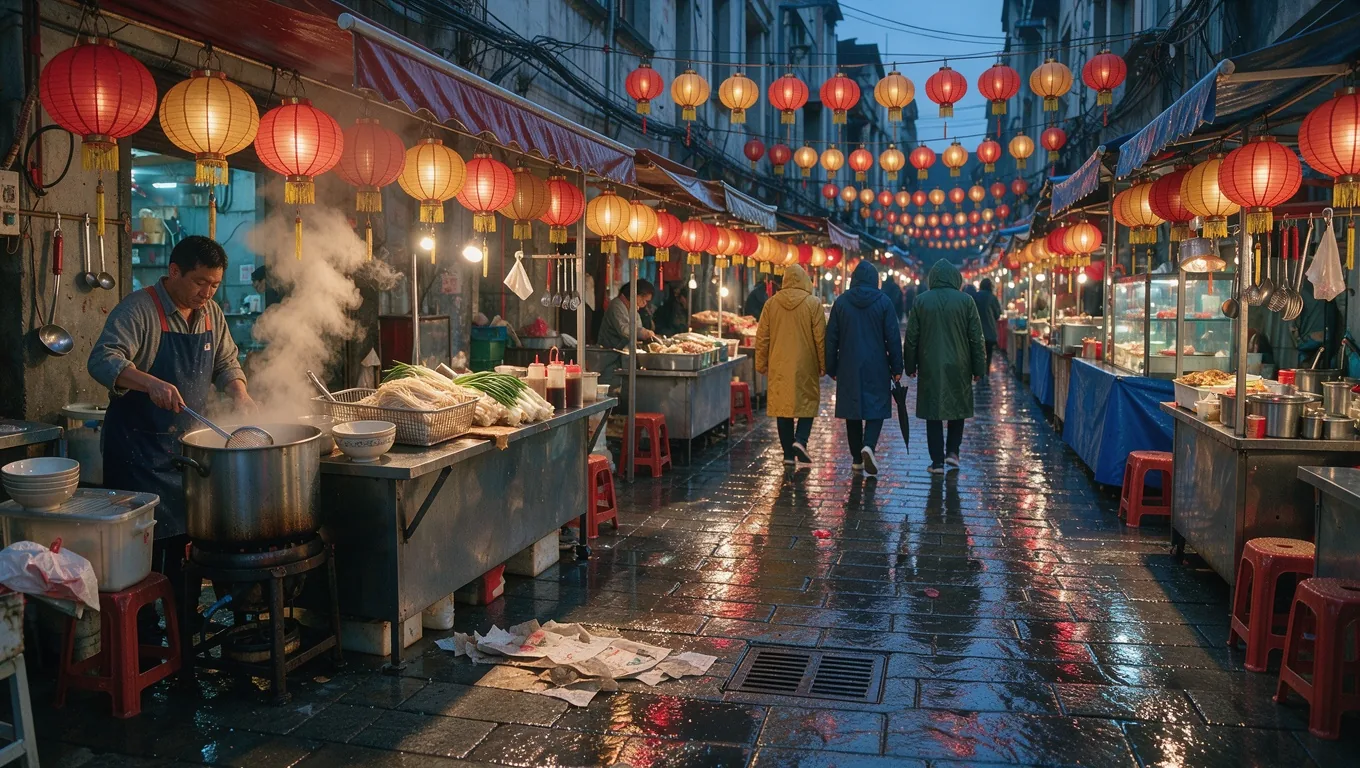
On flux-3image, the FLUX 3 AI image editor sits in the same box as the generator. Add a photo to the upload tray and the request switches from text to image to editing. There is nothing to install and no selection to draw. The four pairs below are real results from our own test runs, each made with a single sentence.
- Model
- FLUX 3 Image by Black Forest Labs, edit mode, called through the fal API
- Input
- One photo plus a one-sentence instruction; up to 9 extra reference images are optional
- Typical edits
- Recolor, swap an object, change the background, season or time of day, replace text, remove clutter
- Output size
- 1K, 2K or 4K; auto keeps the shape of your photo
- Waiting
- Results usually arrive while you stay on the page; 2K and 4K take longer than 1K
- Credits per edit
- 2 at 1K · 8 at 2K · 32 at 4K; reference images add no credits
- Commercial use
- Allowed for all users, per our Terms, for photos you have the rights to
- What it can't do
- No mask brush or selection tool: you describe the change in words. No layers, no upscaling
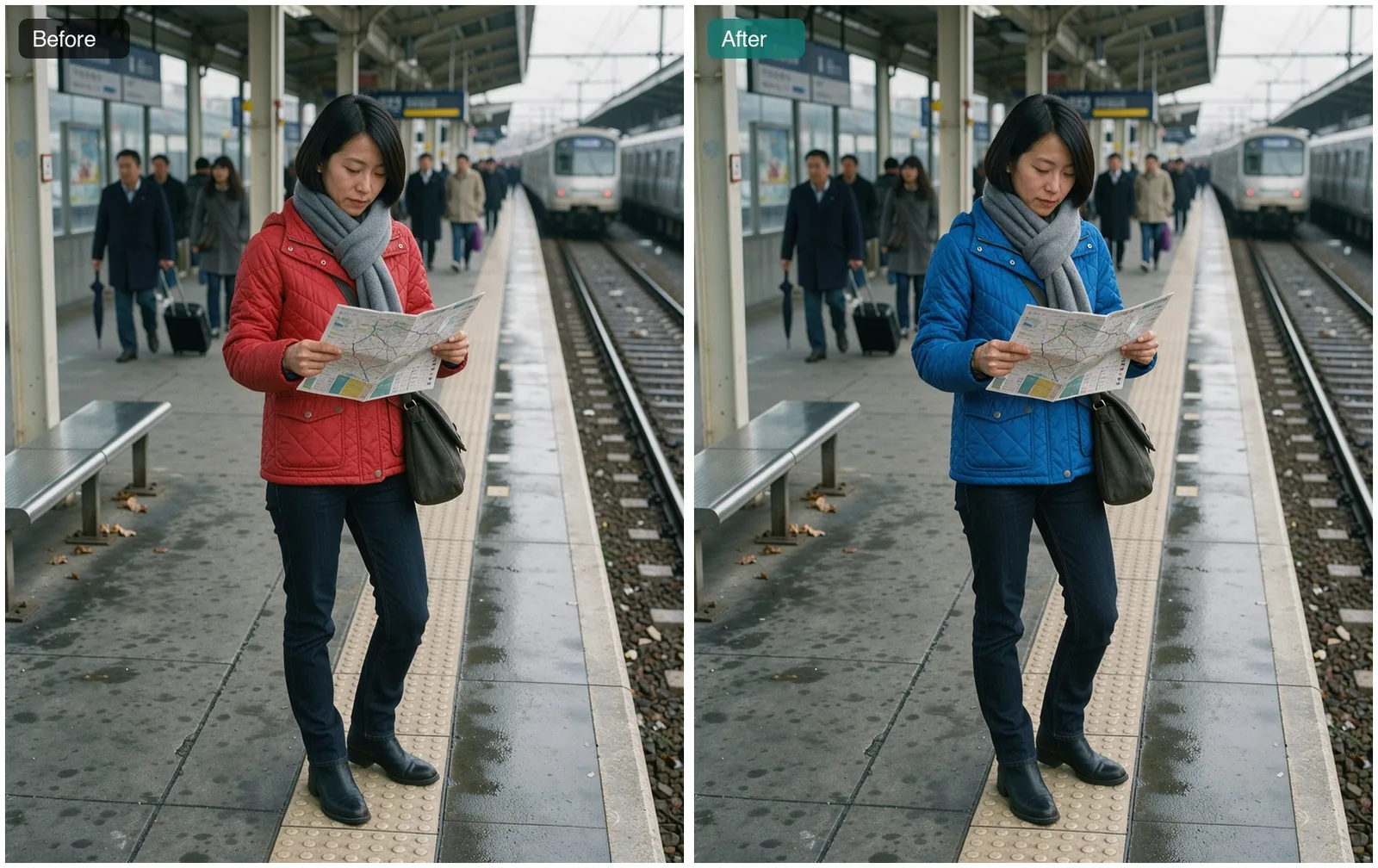
Recolor clothing without touching anything else
The instruction: "Change the woman's red quilted jacket to a cobalt blue quilted jacket. Keep her face, hair, scarf, jeans, the map, the platform and the people in the background exactly the same."
The quilting, the collar and the way the jacket creases at the elbow all carried over; only the color changed. Her face, the grey scarf, the paper map and the commuters behind her match the original. Recoloring was one of the most reliable edits in our tests, and it is how one product photo becomes every colorway.
- One sentence
- Face unchanged
- Same background
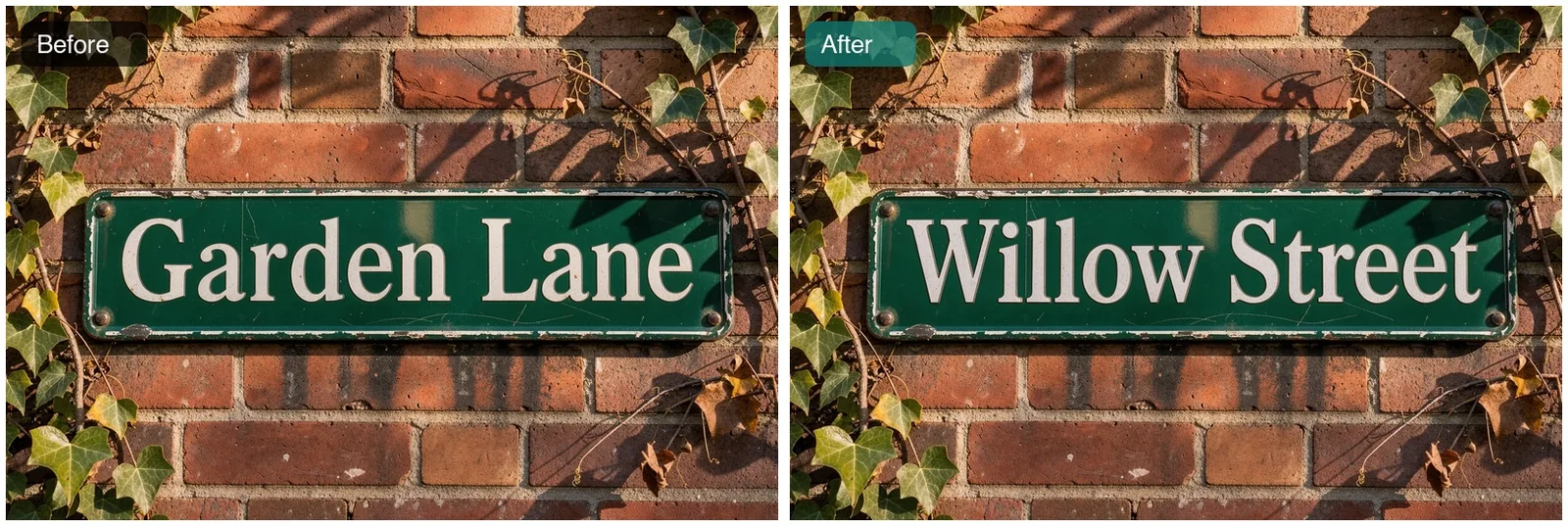
Change the words on a sign or label
The instruction: replace "Garden Lane" with "Willow Street" in the same white serif lettering, and keep the enamel, screws, bricks and ivy.
The FLUX 3 image editor matched the letter style, the spacing and even the worn edges of the enamel. Text edits like this save real time on menus, shop signs, packaging mockups and book covers, where retyping the words in a design tool would mean rebuilding the whole graphic. Put the old and the new words in quotation marks so the model knows exactly what to swap.
- Same typeface
- Same wear
- Ivy untouched
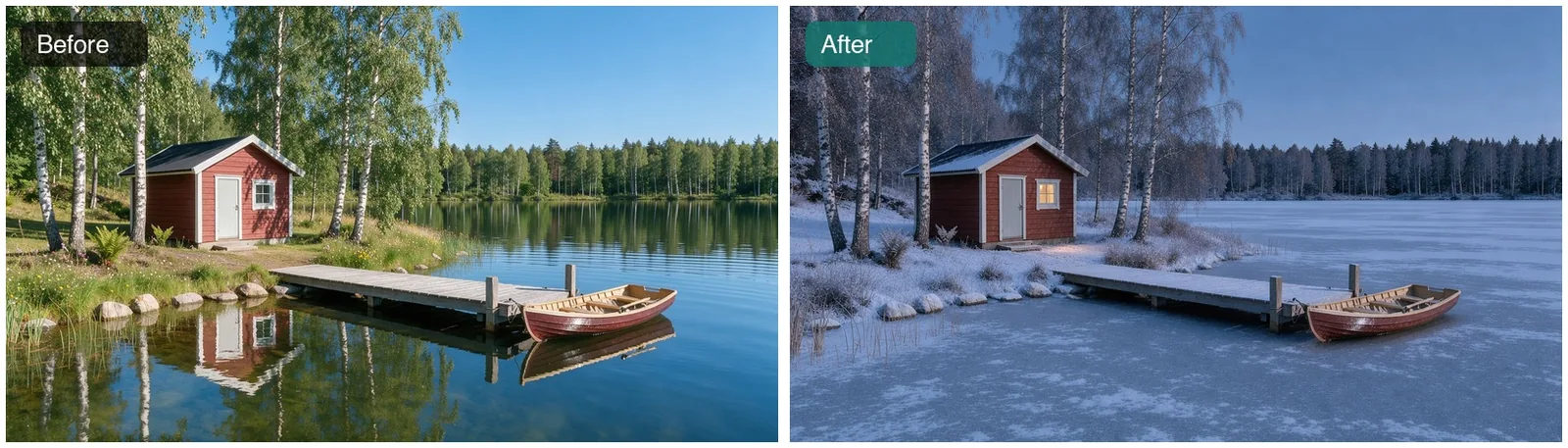
Turn summer into a winter evening
Bigger changes work too. We asked for a winter evening at dusk: snow on the ground and roof, a frozen lake, bare birches and a warm light in the cabin window, with the cabin, jetty, boat and camera angle in the same places.
Snow, ice, frosted birches, dusk light and the glowing window all arrived in one pass, and the composition held. The cabin, the jetty and the boat sit exactly where they were. This is useful for real estate listings, travel content and seasonal campaigns, where one good photo can cover four seasons.
- Snow added
- Window lit
- Layout kept
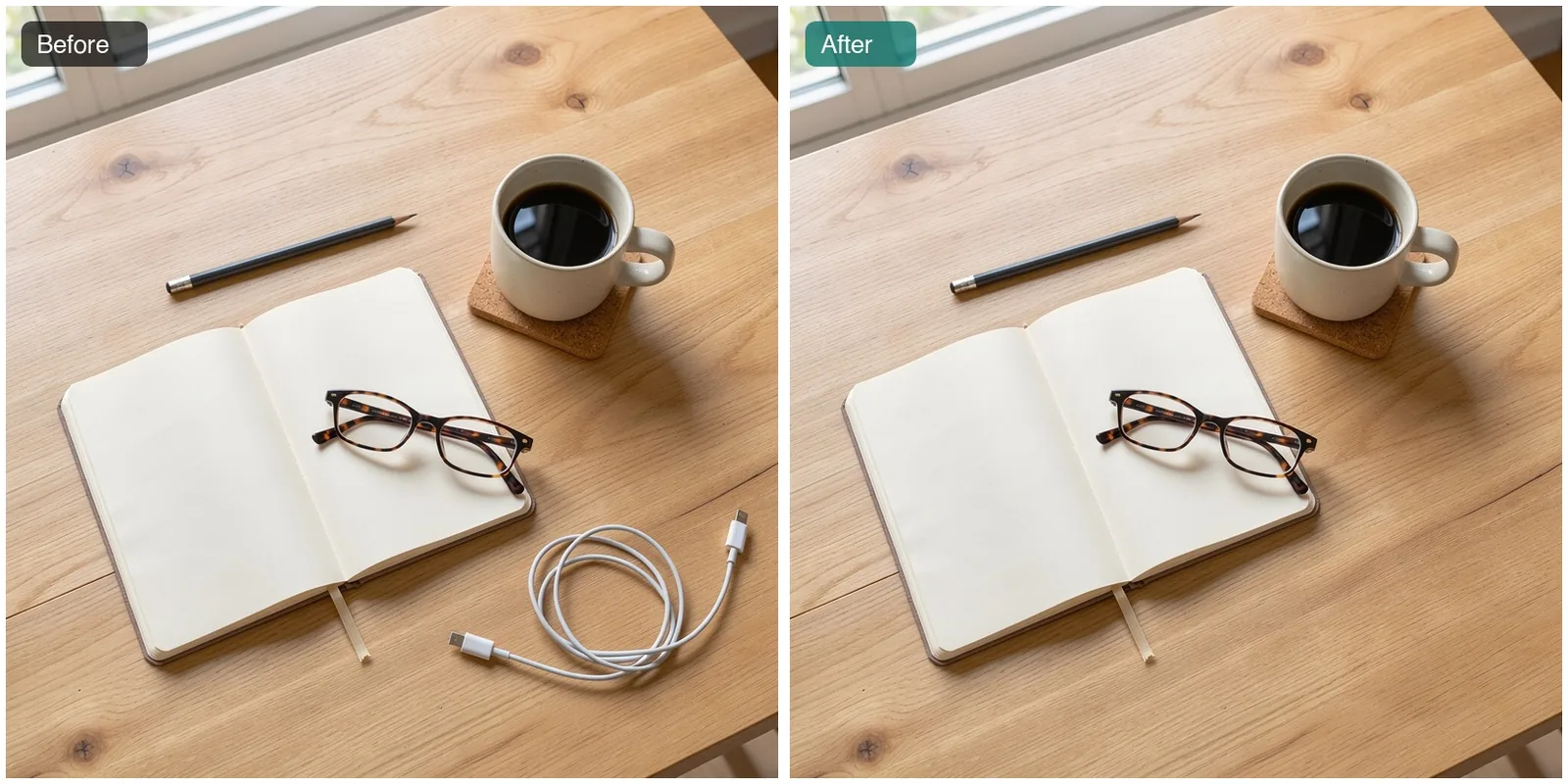
Remove a stray object
The instruction: "Remove the white charging cable from the desk. Keep the notebook, mug, glasses, pencil, coaster, wood grain and light exactly the same."
The cable is gone and the oak grain continues underneath it as if it had never been there. The notebook, the mug, the glasses and even the pencil stayed in place. Removal is where the FLUX 3 image editor beats a mask tool: in our tests on another page, the mask-based FLUX Fill kept painting a new object into the empty space, while FLUX 3 removed it cleanly.
- Clean fill
- Nothing else moved
Edit image with FLUX 3 in five steps
- 1
Upload your photo
Drop it into the upload tray. It needs to be at least 256 pixels on both sides; large files are resized for you.
- 2
Write one change
Start with a verb ("Change", "Replace", "Remove", "Turn") and name the object the way you would to a person.
- 3
Say what stays
End with a keep list: "Keep the face, the background and the light exactly the same."
- 4
Pick a size
Leave the aspect ratio on auto to keep your photo's shape. Use 1K to test and 2K or 4K for the final file.
- 5
Generate, then refine
If the result is close, use it as the next input and make the next small change. That loop is the quickest way to edit an image with FLUX 3.
Instructions the FLUX 3 image editor follows well
- 01
Recolor
"Change the [object] to [color or hex code]. Keep everything else the same."
- 02
Swap
"Replace the [object] with [new object] of the same size, in the same spot."
- 03
Text
"Replace 'old words' with 'new words' in the same lettering."
- 04
Background
"Put the [subject] on [new background]. Keep the subject's pose and lighting direction."
- 05
Season or light
"Turn this into a [season] [time of day]. Keep the buildings and layout in place."
- 06
Remove
"Remove the [object]. Keep the rest of the photo exactly the same."
Limits worth knowing
There is no mask brush, lasso or layer panel. You point at things with words, so name them clearly: "the mug on the left" works better than "that thing". If two objects look alike, describe position, color or size to tell them apart.
Very small objects, long paragraphs of text and dense patterns are the hardest edits. A photo is redrawn at the size you choose, so fine textures can shift slightly even where nothing was asked to change. For a repaint that must stay strictly inside an area you draw yourself, FLUX Fill is the mask-based option. To combine several photos into one, use FLUX multi image.
Is the FLUX 3 image editor free?
Not entirely. Each edit with the FLUX 3 image editor costs credits, because it is a paid call to the model's API. Accounts created with Google sign-in get free welcome credits, enough for a first FLUX 3 edit free of charge. After that, the free FLUX.2 [klein] model on the home page can still edit one photo, more simply.
Frequently asked questions
Can FLUX 3 edit images?
- Yes. FLUX 3 Image has an edit mode: you give it a photo and a written instruction, and it returns the edited image. It also accepts up to 9 extra reference images in the same request, for example a product or a color swatch.
Do I need to mask or select the area I want to change?
- No. The FLUX 3 image editor works from your words alone. Name the object and say what should happen to it. If you need pixel-exact control over the area, use FLUX Fill, which works with a painted mask.
Can the FLUX 3 image editor change text in a photo?
- Yes, for short text such as signs, labels, headlines and menu items. Put the old and new words in quotation marks and ask for the same lettering. Long paragraphs are less reliable.
Will my photo lose quality after editing?
- The edited image is rendered fresh at 1K, 2K or 4K, so pick a size at least as large as your original. Areas you didn't mention are kept as closely as the model can, but very fine textures can shift slightly.
Can I edit photos of people?
- Yes, if you have the right to use the photo, such as your own photos or those of people who agreed. flux-3image refuses requests that break its content policy, and you are responsible for the images you upload.


Updated