
FLUX AI Outpainting: Widen a Photo to 16:9 or 21:9
Widen a photo with FLUX 3 Image. Compare real 16:9 and 21:9 edits, copy the prompt, and see what changes when the original pixels are not locked.
FLUX AI outpainting adds scenery beyond an image’s borders. To make a wider version in the FLUX 3 Image editor on flux-3image, upload a photo, choose 16:9 or 21:9, and ask it to continue the surroundings. This is a reference-based redraw: it can widen the scene, but it does not lock the original pixels. The greenhouse example below shows both the added space and the changed background details.
Do you need a wider composition or a fixed source region?
A prompt-based edit works when you want more surroundings and can accept changes within the original scene. It does not let you place the source at an exact position on a larger canvas.
As of October 2026, BFL’s dedicated FLUX Outpainting tool accepts target canvas dimensions and reference offsets, with no prompt required. For masked expansion, FLUX.1 Fill accepts a black-and-white mask or transparent image areas: black or opaque regions are preserved; white or transparent regions are generated. Neither workflow is available on flux-3image, which has no mask brush or canvas-placement control.
If the source region must stay unchanged, use a workflow that explicitly preserves it. The steps here suit a new composition based on your photo. The Kontext object-removal example covers the related distinction for edits inside an image.
Step 1: Which photo gives FLUX enough background to continue?
Upload a clear photo with the subject and some visible surroundings. In this example, roof beams, windows, and plant benches give the model background elements to continue.
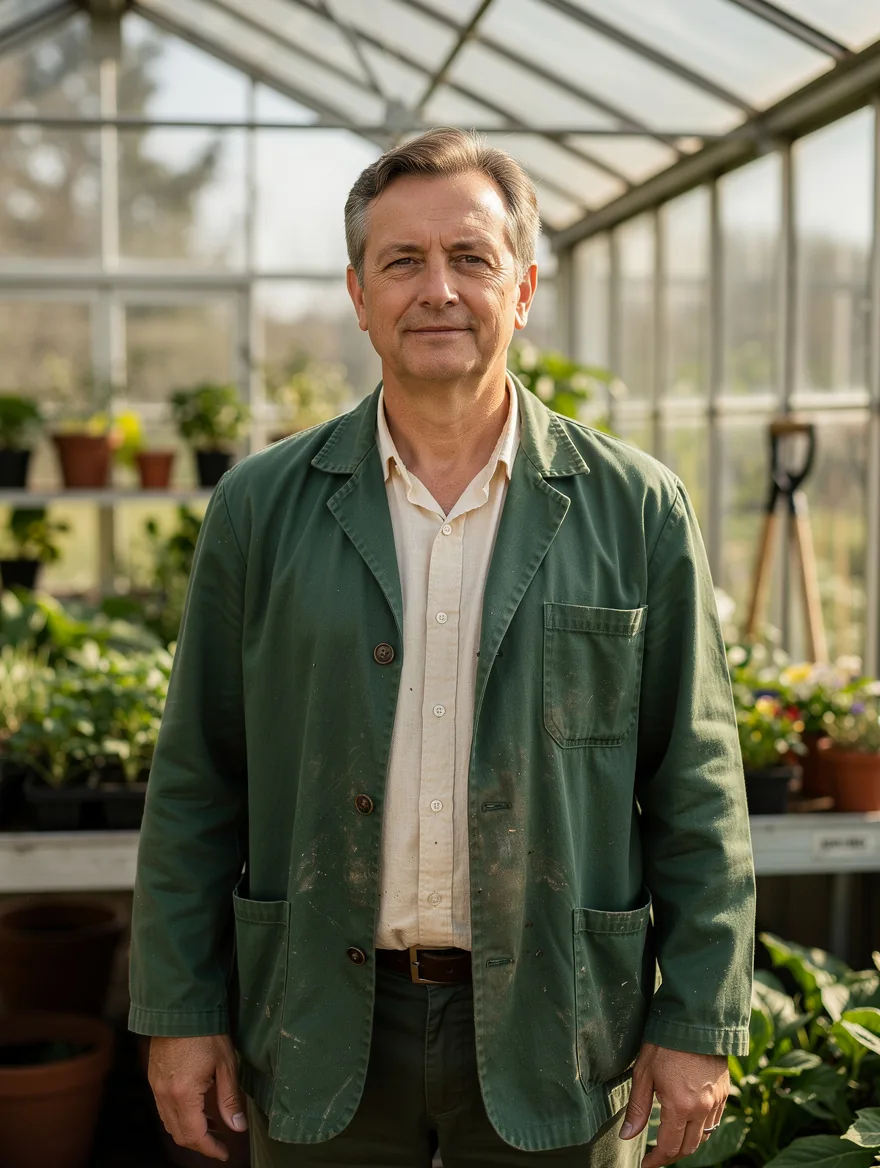
We generated a fictional adult gardener with FLUX.2 Pro at 1K, 3:4, using this exact prompt:
Photorealistic waist-up greenhouse portrait of a fictional adult gardener aged 40, fully clothed in a green work jacket over a buttoned cream shirt, standing centered with arms relaxed and hands visible. Entire head visible with space above it. Glass greenhouse roof and plant benches behind the gardener, soft morning daylight, natural facial features, no text or logos.
The 880 × 1168 pixel result includes the whole head, both hands, and upper legs, despite the request for waist-up framing. A shovel is visible behind the gardener on the right.
Sign in, select FLUX 3 Image, and click Add a photo to upload the source. JPEG, PNG, and WebP files are accepted, with an 8 MB upload limit; each side of a FLUX 3 Image reference must be at least 256 pixels. Your own photo can serve as the source.
Step 2: Should you choose 16:9 or 21:9?
Choose 16:9 under Size and 1K under Quality to match the first edit. Select a wide ratio explicitly; Auto follows the source’s shape and would keep this portrait vertical.
For a shallow banner, try 21:9 from the same original upload. It gives the surroundings more of the frame and makes the subject smaller relative to the image width. Use the ratio your layout needs, then judge whether the person remains large enough at the intended display size.
Keep Quality at 1K for both attempts. The label identifies an output tier; it does not mean every result is 1024 pixels wide. The actual dimensions appear below.
Step 3: What prompt asks FLUX to widen the scene?
Name the expansion direction, the subject details to retain, and the background to continue. Both edits used this exact instruction:
Widen this greenhouse portrait by extending the surroundings to the left and right. Keep the gardener centered with the same face, clothing, pose and lighting. Continue the existing greenhouse structure and plant benches naturally.
For another photo, replace “greenhouse structure and plant benches” with visible elements such as a brick wall and sidewalk, or windows and furniture. Avoid adding an outfit or lighting change to the same request: those changes make it harder to judge whether the widening worked.
“Keep the same face” tells the model what matters, but it does not freeze that part of the image. The site sends your instruction without prompt expansion. Check the model, ratio, and quality, then click Generate.
Step 4: What changes in the two wider results?
We made one 16:9 edit and one 21:9 edit with FLUX 3 Image. Each used the original Pro portrait, not the other edit, as its single reference. These are separate generations, so their differences cannot all be attributed to the ratio.
| Original portrait | 16:9 edit | 21:9 edit |
|---|---|---|
| Fictional adult gardener in a green jacket in a vertical greenhouse portrait, with a shovel behind him at right | 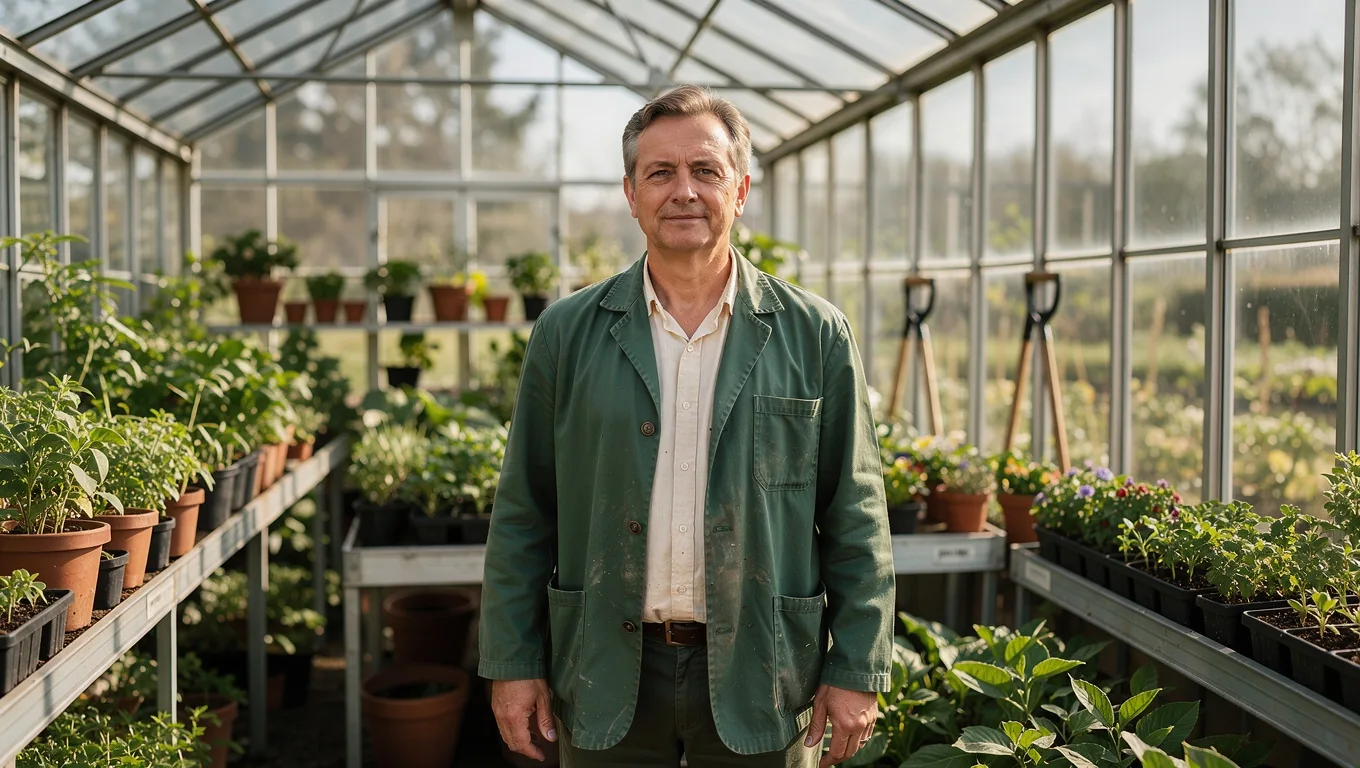 | 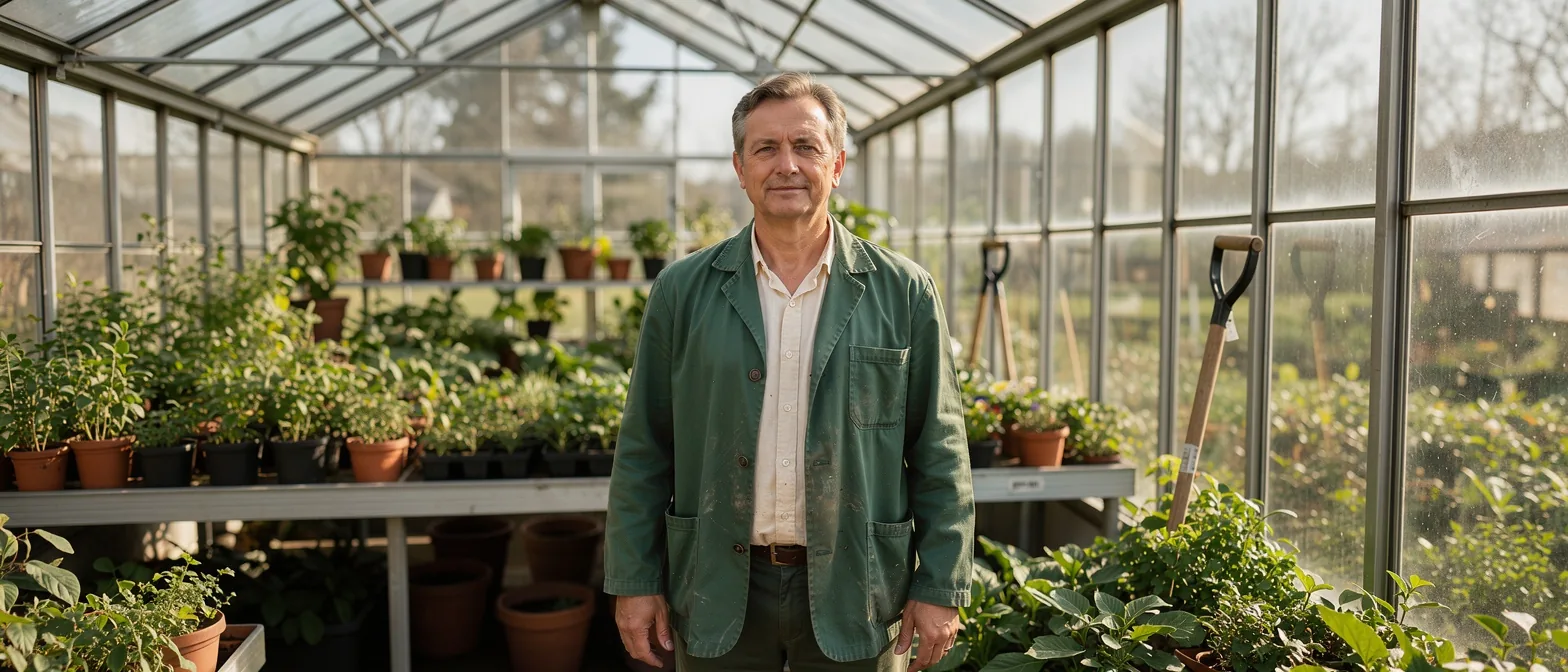 |
| FLUX.2 [pro], 1K, 3:4; 880 × 1168 pixels | FLUX 3 Image edit, 1K, 16:9; 1360 × 768 pixels | FLUX 3 Image edit, 1K, 21:9; 1568 × 672 pixels |
The 16:9 result adds rows of pots and seedling trays on both sides. The 21:9 result gives more space to the long left bench and the plants on the right. Both keep the gardener centered with the whole head visible, a green jacket, a cream shirt, and arms down.
Both outputs rearrange the original plants and benches. The 16:9 edit also adds a second shovel; the source shows one.
Step 5: Which version should you download?
Compare each result with the source before choosing it. Check the face, fingers, jacket edges, and headroom, then follow the roof beams and benches through the added surroundings. Look for repeated objects as well as broken shapes.
Preview the result in your actual layout. Here, 16:9 gives the gardener more presence; 21:9 gives the greenhouse more room. A clear face in the full-size image may be too small in a shallow banner. Use the result’s download control after choosing the version that fits.
If you retry, return to the original reference so you can judge the new result against the same starting image. The FLUX.2 portrait prompt examples provide more framing and hand-placement wording if you need to generate a source.
As of October 2026, the live pricing page lists 2 credits per FLUX 3 Image edit at 1K, with no reference-image surcharge. The two widening edits cost 4 credits at that rate; generating the source is separate. The free FLUX.2 [klein] option on the homepage supports 1K and one uploaded photo, but it did not produce these examples.