
Change Clothes with FLUX Kontext: Prompts and Fixes
Change clothes with FLUX Kontext using garment-specific prompts. Compare two real cardigan edits, fix unwanted changes, and know when to use a reference photo.
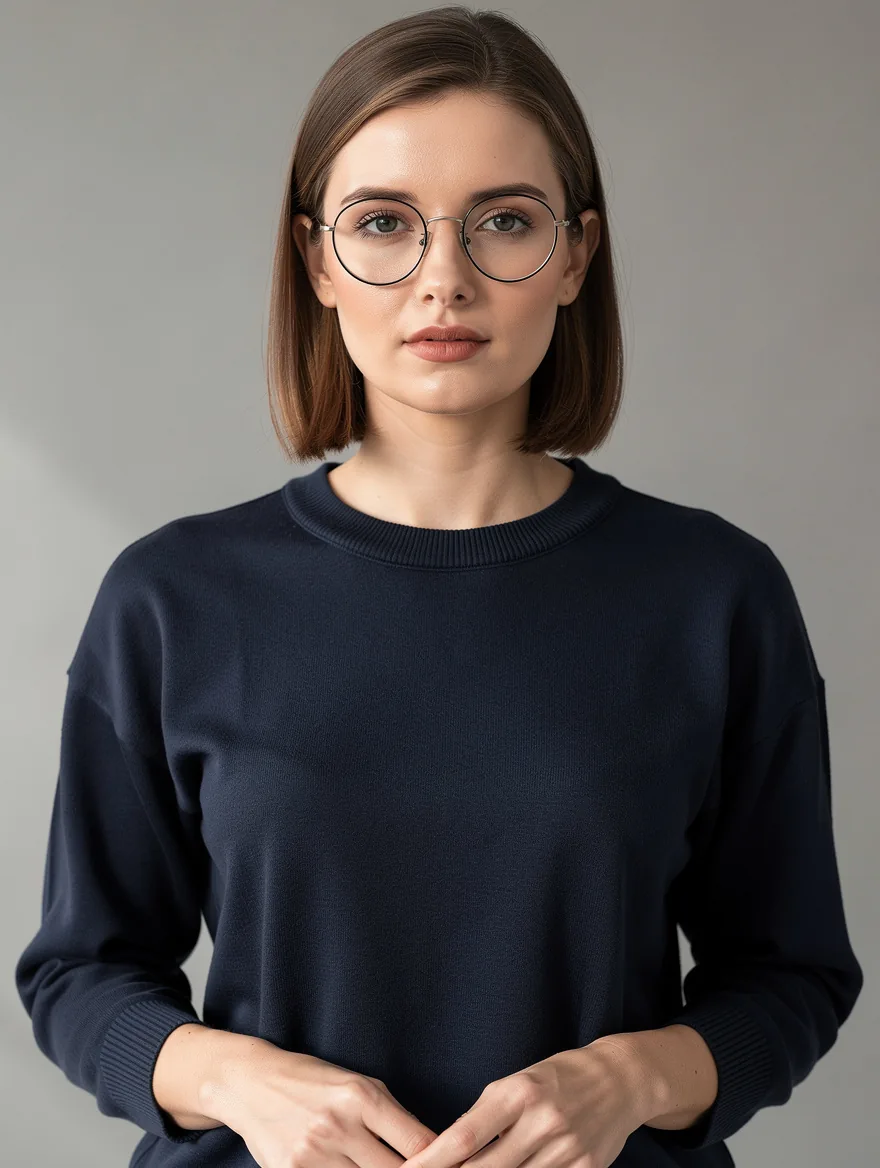
To change clothes with FLUX Kontext, open the Kontext editor on flux-3image, select FLUX.1 Kontext [pro], and upload one photo. Name the garment to replace, describe the new garment, and say what should stay the same. For example: “Replace only her navy sweater with a cream wool cardigan. Keep her face, hair, glasses, pose, hands, background and lighting unchanged.” Kontext here accepts one input image; copying clothes from a separate reference photo needs a different workflow.
How do you replace a sweater with a cardigan?
Sign in, choose Kontext [pro] in the model menu, and upload a photo showing the sweater and the person's face. The page also offers FLUX 3 Image and selects it by default, so check the model before generating. Leave the aspect ratio on Auto to follow your photo's shape, enter the clothing instruction, and press Generate. The site sends your prompt as typed.
Here, a fictional adult portrait made with FLUX.2 [pro] supplied the input. Both Kontext [pro] edits below started independently from that original photo, using the exact instructions shown. Each prompt was run once, with default output sizing.
Input portrait prompt:
Waist-up photograph of a fictional 32-year-old woman with shoulder-length brown hair and round glasses, wearing a navy cotton sweater, hands visible, neutral studio background, even daylight, no text or logos.
Short edit:
Change her outfit to a cream cardigan
Specific edit:
Replace only her navy sweater with a cream wool cardigan. Keep her face, hair, glasses, pose, hands, background and lighting unchanged.
| Original | Short edit | Specific edit |
|---|---|---|
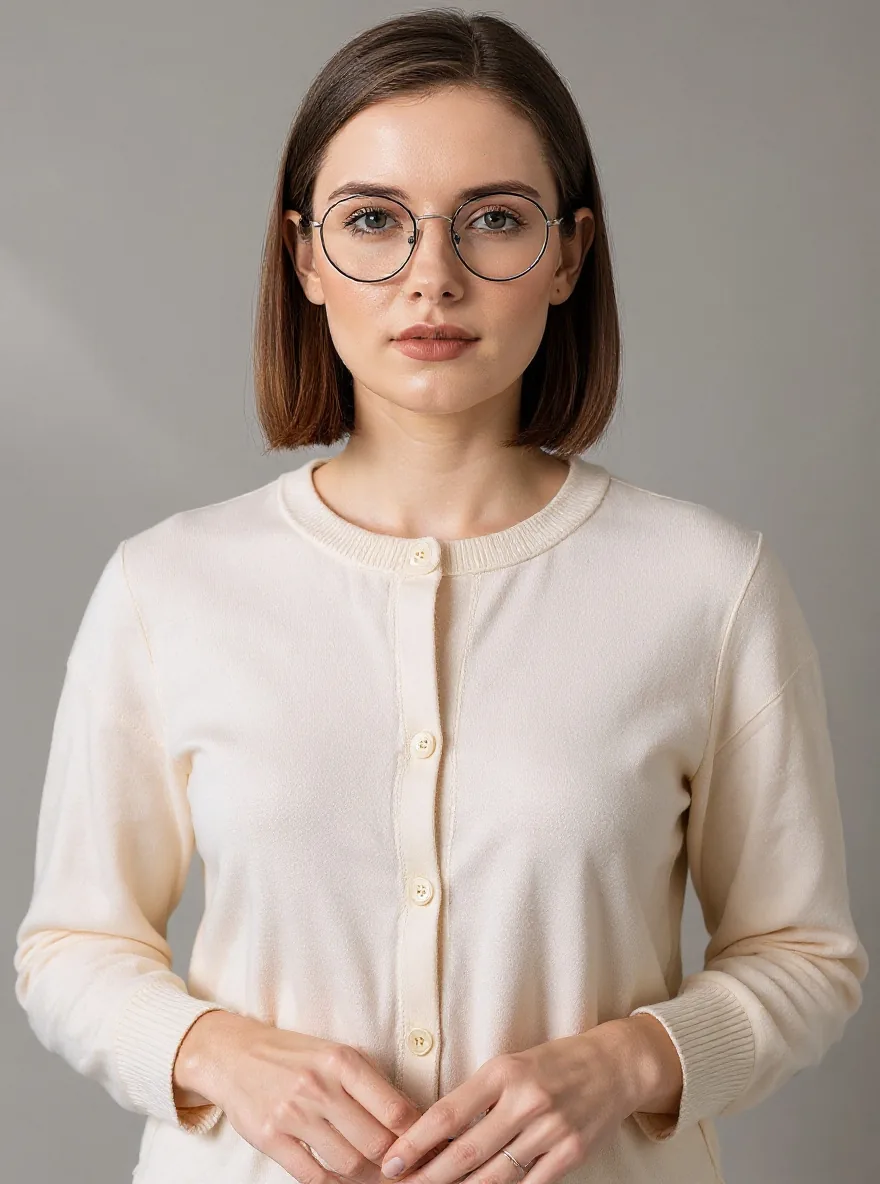 | 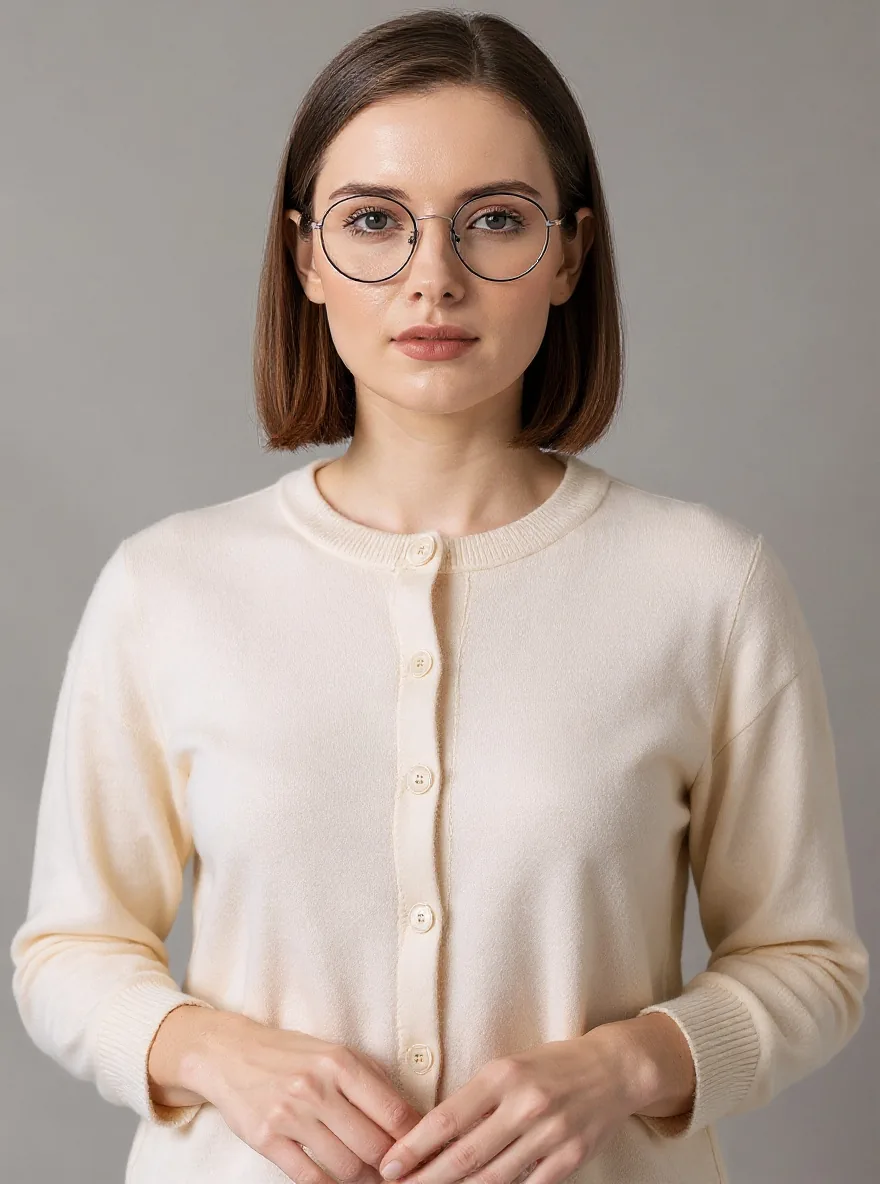 |
Left: FLUX.2 [pro] input, 1K, 3:4, 880 × 1168. Center: FLUX.1 Kontext [pro], short instruction, 880 × 1184. Right: FLUX.1 Kontext [pro], specific instruction, 880 × 1184. Both edits used default sizing.
Both prompts replaced the navy pullover with a cream cardigan: the front now opens with visible buttons, and the sleeves have ribbed cuffs. The woman remains recognizable, with her brown bob, round glasses, forward-facing pose, and gray background. The longer prompt did not produce a clearly better cardigan in this pair.
The short edit added a thin ring absent from the original and specific result, and both edits show more skin texture beneath the eyes than the input. Check accessories and facial details even when the clothing change succeeds.
Why does Kontext only change the sweater's color?
“Make her outfit lighter” leaves the garment ambiguous. To replace it, name a structural change: “Replace the navy pullover with a cream button-front cardigan.” If the result still looks like a pullover, specify the missing feature—a front opening, visible buttons, or a V-neck. Choose the details your intended garment needs, and save changes to the setting or pose for another edit.
For a recolor, ask to keep the existing garment:
Change only the navy sweater to cream. Keep its crew neck, fabric texture, sleeve shape, and fit unchanged. Keep the person and background unchanged.
This recolor prompt is a suggestion; the pictured examples replace the sweater. BFL's Kontext editing documentation describes the underlying interaction: an input image plus a text instruction naming the change.
Can Kontext copy clothes from a second photo?
On flux-3image, Kontext accepts one reference photo per edit, as of October 2026. A description such as “a cream cardigan” asks it to invent a garment fitting those words. It doesn't supply a catalog item's exact neckline, buttons, or cut.
Some clothing-transfer tutorials combine the person and outfit side by side in a single image. The Cross-Image Try-On project uses that arrangement with a custom LoRA based on Kontext [dev] and labels its results experimental. That setup differs from the hosted Kontext [pro] editor used above.
For separate person and garment uploads, use the FLUX 3 Image editor, which accepts up to 10 references in total as of October 2026. A starting instruction is:
Replace the jacket worn by the person in image 1 with the jacket shown in image 2. Match its color, collar, pockets, and fastening. Keep the person's face, hair, pose, pants, and background from image 1.
This two-reference prompt was not run for the examples above. If you need to represent a particular item, compare the output's seams, pockets, and fasteners with the garment photo before using it.
What should you change when the face or pose drifts?
Return to the original photo and restrict the request to the garment. Identify the person by a visible feature, such as “the woman with round glasses,” and explicitly ask to retain the face, hair, glasses, expression, pose, and hands. Include jewelry if it matters.
Use a frame that shows the clothing you need to edit. The torso portrait above works for a cardigan; pants or a full-length dress need a wider view. Compare the face, hand positions, cuffs, and collar with the original at the same display size before accepting the result.
If the person has changed, refine the preservation sentence and rerun from the original. If the person looks right but the clothes are wrong, refine the garment description. For a separate example of fabric details changing during an edit, the FLUX 3 vs FLUX 2 comparison shows a dress recolor where FLUX 3 Image made sheer sleeves opaque.
Frequently asked questions
Can I change clothes in a photo editor?
Yes. Upload a photo you have permission to use, describe the garment replacement, and name what should stay. Kontext uses text instructions without a painted selection.
Is changing clothes with Kontext free?
Kontext [pro] costs 4 credits per image on flux-3image as of October 2026, according to the live pricing page. The site's free FLUX.2 [klein] option is a separate model. Each rerun with Kontext [pro] costs another 4 credits.