
FLUX Kontext Face Swap: Can You Upload a Donor Photo?
Kontext accepts one photo on flux-3image. See exact prompts and portrait results, plus a two-reference FLUX 3 Image attempt that missed the donor likeness.

FLUX Kontext can change a face from a text prompt, but the Kontext editor on flux-3image accepts only one photo. You cannot upload a separate donor portrait to Kontext here. For a base photo plus a face reference, use the FLUX 3 Image editor. The examples below show a one-photo face edit and a two-photo replacement attempt, with both original portraits included for comparison.
Why do some Kontext face swaps use two photos?
Some “FLUX Kontext face swap” tools combine several editing stages. RunComfy's workflow takes a base image and a face image, aligns the face with InsightFace, pastes it into the base, then refines the composite with FLUX. Its face alignment and compositing happen before refinement.
As of October 2026, Kontext [pro] and [max] on flux-3image each accept one reference; switching to [max] does not add a donor slot. BFL's Kontext editing documentation describes editing an uploaded image with a written instruction. Describing a square jaw gives Kontext a feature to generate. A separate donor photo supplies a specific face to work from, which requires a different upload setup here.
Which photos and prompts should you use?
We generated two fictional adult portraits with FLUX.2 [pro]. Portrait A is the base: wavy light brown hair, light eyes, and a teal shirt. Portrait B is the donor: close-cropped dark hair, brown eyes, heavy eyebrows, and a mustard brown shirt.
One-photo edit: Select FLUX.1 Kontext [pro], upload A, and describe the replacement face. This request used:
Replace the face with a different fictional adult with a square jaw and short dark hair. Keep the pose, clothing, and background unchanged.
Two-photo attempt: Select FLUX 3 Image, upload A first and B second, and name each image's role. This request used 1K output at 3:4:
Use the fictional adult face from image 2 in image 1; preserve image 1's pose, clothing, and background.
flux-3image sends the prompt as typed, without expanding it. These are different requests with different inputs and prompts, with one completed output shown for each.
Did either edit produce the requested face?
| Base and donor portraits | Edited portraits |
|---|---|
A: base — FLUX.2 [pro], 880 × 1168 pixels.  | Kontext [pro]: A only, 880 × 1184 pixels. |
B: donor — FLUX.2 [pro], 880 × 1168 pixels. 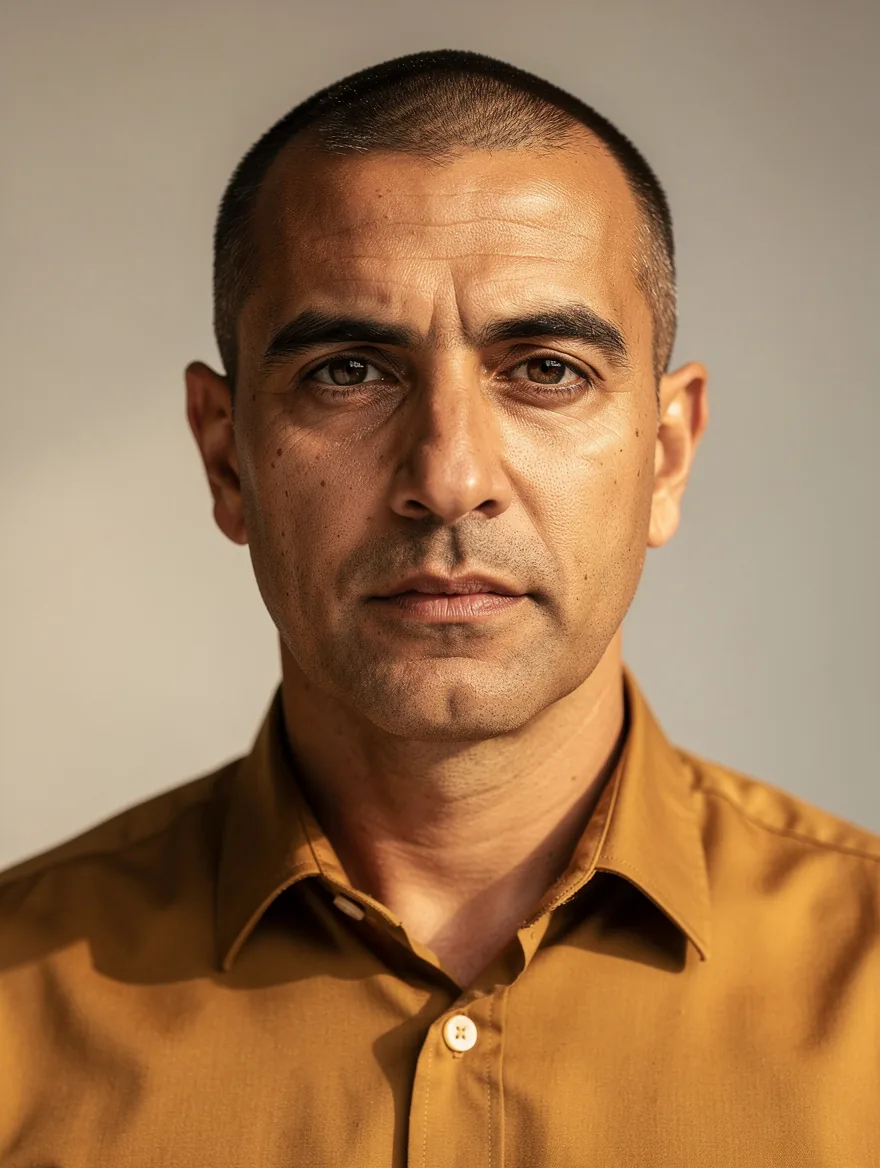 | FLUX 3 Image: A and B, 1K, 3:4, 880 × 1184 pixels.  |
Kontext changed A's face and shortened the hair, but the requested dark hair stayed brown. The two-reference result still looks much closer to A than B: it retains A's light eyes and narrower eyebrows, while B has brown eyes and heavy brows.
Both outputs keep a forward-facing portrait, a teal shirt, and a gray background. Compare the eyes, eyebrows, nose, and jaw with the donor before deciding whether a face replacement worked; a preserved shirt or backdrop tells you little about likeness. The Kontext quality guide explains how to compare the original and downloaded result at 100% zoom.
What does each face-editing attempt cost?
As of October 2026, flux-3image pricing lists Kontext [pro] at 4 credits per image and FLUX 3 Image at 2 credits for 1K output. FLUX 3 Image accepts up to 10 reference images in total, with no extra reference charge. The free FLUX.2 [klein] option edits one uploaded photo.
Choose the model by the inputs you need, then judge the result against the face you asked for. Use fictional portraits or photos whose subjects have agreed to the edit.